
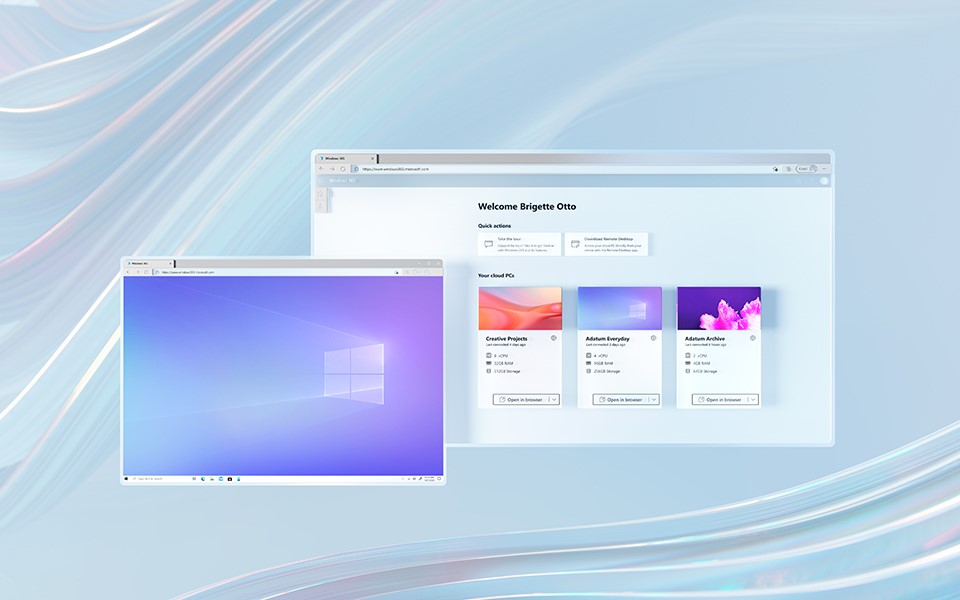
First thing to do is Sign Up for Windows 365.
I would recommend getting 8gb of RAM for any advanced data analysis and data integration but for small projects like what I am demonstrating to you the package below works fine. There is a 9 euro a month increase so just beware of that.

Microsoft 365 is a (relatively) cheap way to get a working Windows Cloud PC up and running, It certainly isn’t the cheapest way of doing it but it is the quickest way I have seen.
No more emails and meetings with IT teams begging them to grace us with a specifically configured server we can use for an ETL job.
I have seen this process take from 3 to 14 days. And do not get me started on getting IP addresses whitelisted.
With Windows 365 you can be up and running in just over an hour.
Once you are set up you can now access your machine through a browser.

While it is pretty exciting to be accessing this machine from a browser, my experience with it has been that the mouse and keyboard inputs lag. Like using teamviewer or anydesk.
There is an option to use Microsoft Remote Desktop and I recommend using that going forward.
it’s very simple to set up.
follow the on screen instructions on the image below for your prefered device.

Once thats set up, RDP into your machine and there you have it.
A bone stock windows 10 machine ready for all you can throw at it.
In the next blog we will be covering
- Downloading R
- Setting Up R Studio
- Signing up for an Api key
- Using R to get data
- Output that data in a .csv for our ETL tool to use.