

Let’s start off by downloading R for our new Windows Machine.
Next we will download the most popular IDE for R, called R studio.
Once they are both installed open up R Studio and you should see a screen looking similar to below.

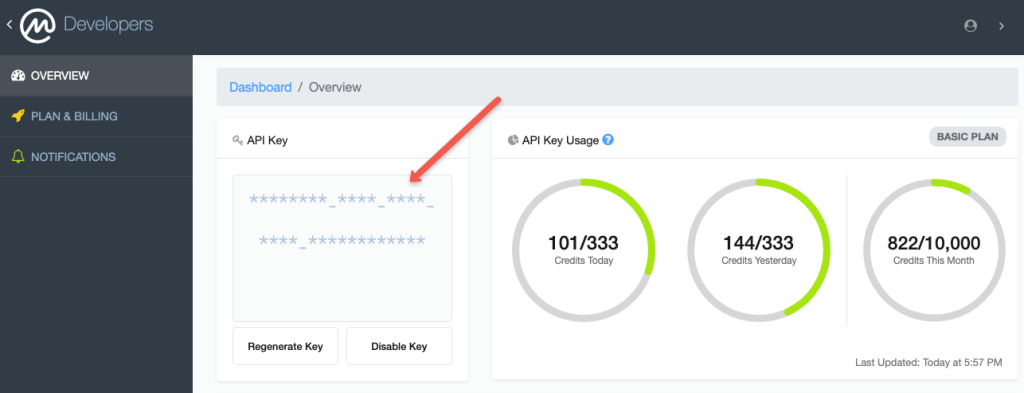
Next thing we need to do is to grab an API key to get the data we want.
I signed up for https://pro.coinmarketcap.com/ account.
This was chosen for a number of reasons
- There is an R package specifically built for this usage called Coinmarketcapr – “Big Win”
- They provide an API key on the free tier with pretty high usage limits (300 calls a day)
- Lastly, its cryptocurrency data so whats not to love!
so grab your API key and get back to R studio.
In R Studio, type
install.packages(“coinmarketcapr”)
in the bottom left “Console” tab of R studio.
Wait for the packages to install.
Then in the top left view copy and paste the text below, but do not forget you will need to replace the API text I have with the one you get from your pro coinmarket cap account.
library(coinmarketcapr)
myapikey <- ‘ThisismyAPIkeygetyourown’
coinmarketcapr::setup(myapikey)
cryptos <- get_crypto_listings
cryptos2 <- cryptos[,-7]
cryptos3 = data.frame(lapply(cryptos2, as.character), stringsAsFactors=FALSE)
write.csv(cryptos3,”C:\\R_script\\R_output\\R_Out.csv”, row.names = FALSE)

There are a few things happening above worth knowing.
We are firstly telling R to use a package called coinmarketcapr and we are feeding it our API key.
We are then creating a variable called cryptos which is a data frame of the get_crytpo_listings command. This is a 29 column dataframe of the top 100 crypto currencies.
cryptos2 <- is the variable we are using to store the dataframe above but we are removing the 7th column. This is the “Tags” column and it contains multiple commas. As these are the standard delimiter in ETL jobs it is best to remove them now.
cryptos3 = This will convert all variables to class “character”, which will be required to generate a .csv
write.csv is exactly what it means. Be aware that when adding the path to use \\ rather than //. You should save your R script in the same path as I have above in order to better replicate the exact process you see on screen.
So we now have a working R script that pulls data from an API and modifies it slightly. It then creates it as .csv which is the prefered file type for most ETL tools.
Simples!
In the next post I will show you
- How to install and set up Talend (Which is an pain, but worth it!)